The Complete Guide of Canonical Tags to Fixing Duplicate Content Issues
Canonical Tags are probably not something you thought about until a page you worked hard on started acting strange in search results, maybe ranking lower than it should, maybe getting outranked by a version of the page you did not even mean to promote.
If you run an online store where the same product shows up under three different URLs because of size or colour filters, or your blog gets picked up and republished somewhere else, you have likely already run into the exact problem these tags exist to solve. Once you see how they work, a lot of confusing SEO behaviour on your own site is going to make a lot more sense.
What Are Canonical Tags?
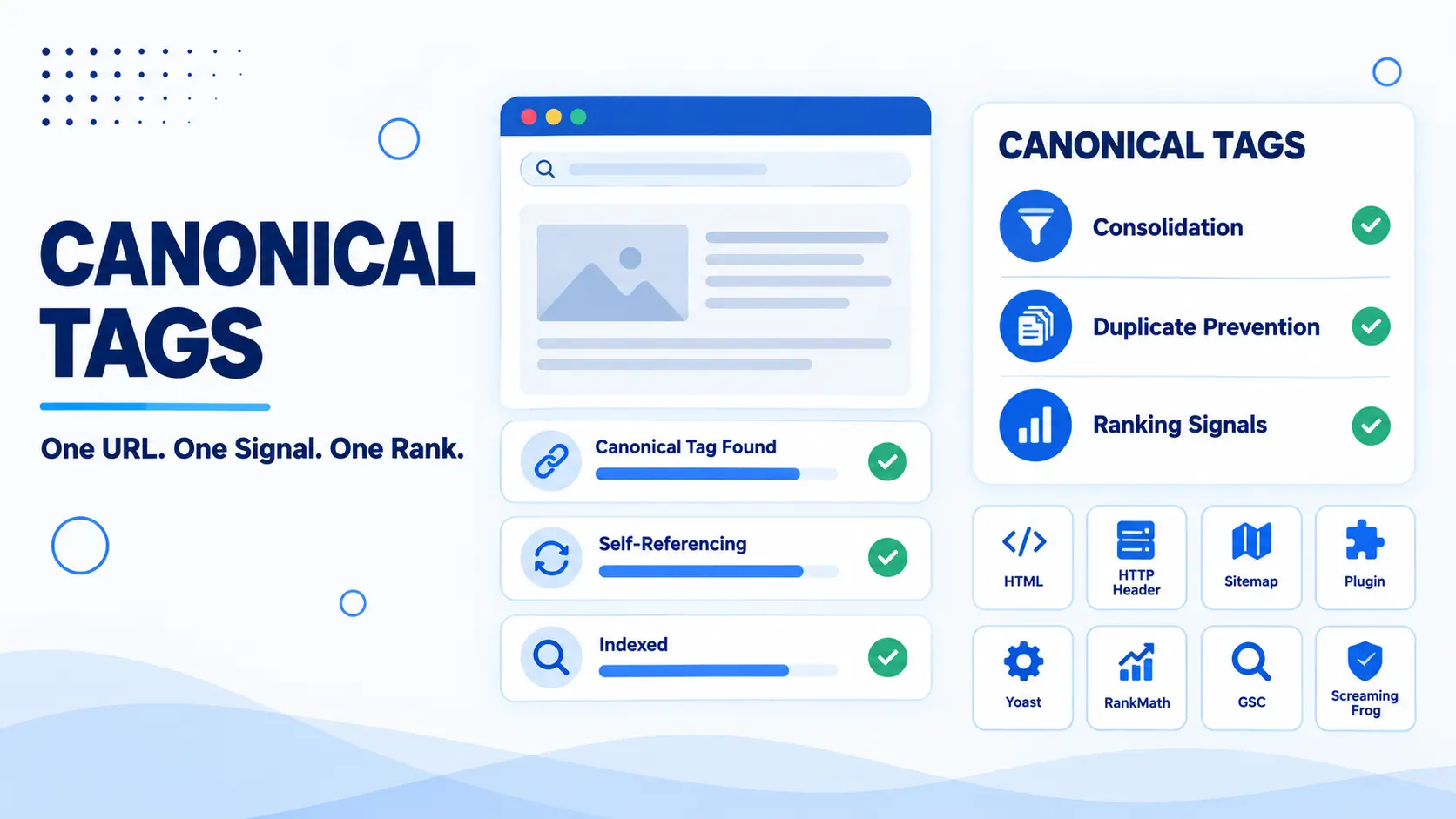
A canonical tag is a small piece of HTML code that tells search engines which version of a page is the original or preferred one when multiple pages have the same or very similar content. Think of it as pointing to the master copy in a folder full of near identical drafts. Search engines see canonical tags and adjust their indexing accordingly, folding ranking signals like backlinks and relevance into the one URL you have marked as the true source.
This matters more than it sounds like it should. Websites end up with duplicate or near duplicate pages all the time, sometimes on purpose and sometimes by accident, through things like URL parameters, printer friendly versions, or product pages that only differ by a size filter. Without a canonical tag, search engines are left to guess which version to show searchers and which one deserves the ranking credit, and that guess does not always go your way.
What Does a Canonical Tag Look Like?
A canonical tag lives inside the head section of your HTML and looks like this.
<link rel="canonical" href="https://www.yourwebsite.com/preferred-page/" />That one line is doing all the work. The rel="canonical" part is what tells search engines this is a canonical declaration, and the href value is the URL you want treated as the definitive version. If you view the source code of almost any well optimised page, you will find this tag sitting quietly in the head, usually without anyone outside the SEO team ever noticing it is there.
Canonical Tag vs Canonical URL
People use these two terms interchangeably, but they are not quite the same thing. The canonical tag is the actual piece of code, the <link rel="canonical"> snippet itself. The canonical URL is the destination that tag points to, meaning the specific web address search engines are being told to treat as the original. So when someone asks what the canonical URL of a page is, they are asking what the href value inside that tag says, not asking about the tag itself.
How Do Canonical Tags Work?
When search engines crawl your website, they are not just reading pages one by one in isolation, they are constantly comparing content across your entire site and sometimes across the entire web, looking for duplicates. If a crawler finds several URLs with matching or near matching content and no canonical tag telling it otherwise, it has to make its own judgement call about which one to treat as the primary version. That judgement call is exactly what you are trying to take out of the search engine’s hands.
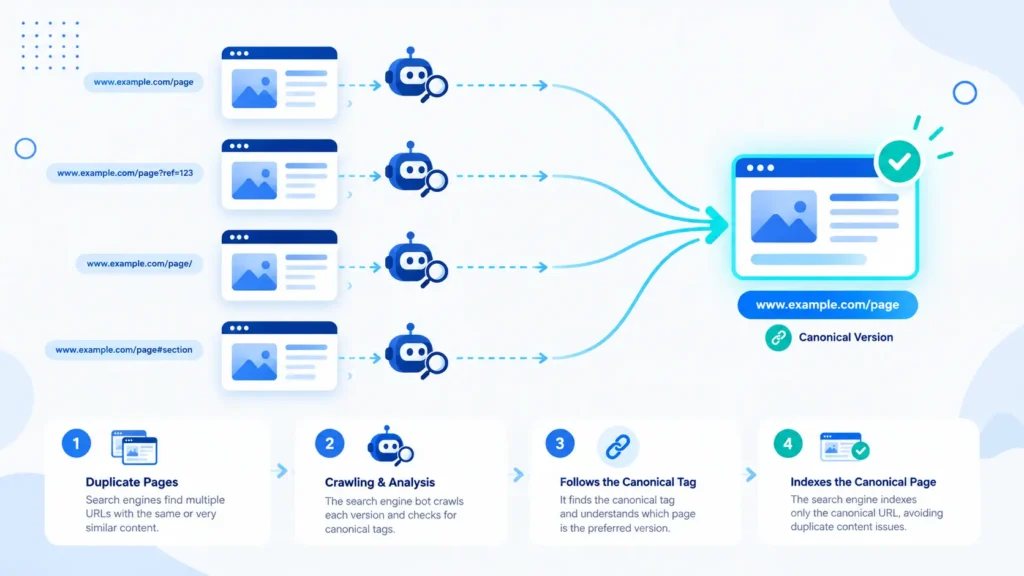
Once a canonical tag is in place, the process becomes far more predictable. The crawler reads the tag, notes which URL has been declared canonical, and consolidates the ranking signals accordingly. Backlinks pointing to the duplicate pages get credited to the canonical version. Content relevance and engagement signals get folded in too. Instead of your ranking strength being split across three or four near identical URLs, it all funnels into the one page you actually want to rank.
It is worth being clear that a canonical tag is a hint, not a strict directive. Search engines like Google generally respect it, but they can override your choice if other signals strongly suggest a different URL should be canonical instead, such as if internal links, sitemaps, and redirects are all pointing somewhere else. This is one of the more common reasons canonical tags do not always behave the way site owners expect, and it is something we will come back to later when we look at fixing canonical tag issues.
Why Are Canonical Tags Important for SEO?
Duplicate content is one of the quiet ways websites lose ranking power without anyone realising it is happening. When search engines find several versions of the same content spread across different URLs, they do not multiply your ranking chances, they split them. Instead of one strong page competing for a keyword, you end up with three or four weaker pages competing against each other, and often against your own best interests.
Canonical tags fix this by making sure all that scattered ranking strength gets pulled back into one page. Backlinks, social shares, and engagement signals that would otherwise be spread thin across duplicate URLs all get consolidated into the version you have marked as canonical. This is especially valuable if other sites or even your own pages have linked to different variations of the same content over time without you noticing.
There is also a crawl budget angle worth mentioning. Search engines only spend so much time and resources crawling any given website, and every duplicate page a crawler has to process is time not spent discovering or re-crawling the content that actually matters. On larger sites, especially ecommerce stores with dozens of filtered product variations, this adds up fast. Canonical tags help crawlers spend their attention more efficiently, which indirectly helps your important pages get indexed and refreshed sooner.
Beyond the technical benefits, there is a simpler reason canonical tags matter. They give you control. Rather than hoping search engines guess correctly which version of a page deserves to rank, you are the one making that decision, and that is a much better position to be in.
When Should You Use Canonical Tags and When Should You Not?
Canonical tags are not something you sprinkle across every page just to be safe, they work best when you use them with intention. Some situations genuinely call for one, and forcing a canonical tag onto a page that does not need it can quietly cause more harm than good.
Self-Referencing Canonical Tags
Here is something a lot of site owners miss. Even pages that have no duplicates at all benefit from a canonical tag, one that simply points back to themselves. This is called a self-referencing canonical tag, and it has become such a common default that most modern SEO plugins add it automatically without you ever asking.
The reason it matters is that it removes any ambiguity upfront, so if a duplicate version of that page ever gets created later, whether through a parameter, a staging environment, or someone else copying your content, your original page already has a clear declaration in place rather than scrambling to add one after the fact.
Also Read: The Complete Guide to Technical SEO And Why Your Content Isn’t Ranking Without It
How to Add a Canonical Tag
Knowing what a canonical tag is only gets you halfway there, the real value comes from actually placing one correctly, and that looks a little different depending on what kind of page or file you are dealing with. Here is how it works across the situations you are most likely to run into.
1. HTML Link Tag in the Head
This is the standard method and the one you will use for the vast majority of your pages. The tag itself is simple.
<link rel="canonical" href="https://www.yourwebsite.com/preferred-page/" />This line needs to sit inside the <head> section of your HTML, not anywhere in the body of the page. If you are hand coding your site, you would add it directly alongside your other meta tags, right next to your title tag and meta description. One detail worth being careful about, the URL inside the href should always be the full absolute URL, including https and the domain, rather than a relative path. A relative path can get misread depending on how the page is served, and that small mistake alone causes a surprising number of canonical issues.
2. HTTP Header (for PDFs and Non-HTML Files)
Not everything on your website is an HTML page. If you have PDFs, images, or other downloadable files that exist in multiple locations, you cannot exactly add a <link> tag inside a PDF. This is where the canonical tag gets sent as part of the HTTP header instead, which looks something like this on the server side.
Link: https://www.yourwebsite.com/document.pdf; rel=”canonical”
This tells search engines the same thing the HTML version does, it just gets delivered at the server level rather than embedded in the file itself. If your site offers downloadable resources under more than one URL, this method is the one you actually need, since the HTML version simply will not work here.
3. XML Sitemap Signals
Your XML sitemap does not create a canonical tag on its own, but it plays a supporting role that is easy to overlook. Search engines treat the URLs listed in your sitemap as a soft signal of which pages you consider important and preferred, so if your sitemap is full of URLs that do not match what your canonical tags are declaring, you are sending mixed signals.
Keeping your sitemap limited to canonical URLs only, rather than every parameter variation or duplicate a crawler might stumble across, reinforces the same message your canonical tags are already sending rather than working against it.
4. Setting Canonical Tags in Yoast / RankMath
If your site runs on WordPress, which a large share of sites do, chances are you will rarely need to touch raw HTML at all. Both Yoast SEO and RankMath add a canonical URL field right inside the page or post editor, usually tucked under an “Advanced” tab in the SEO settings panel for that page. By default, both plugins automatically insert a self-referencing canonical tag on every page, which covers you for the majority of cases without any manual work.
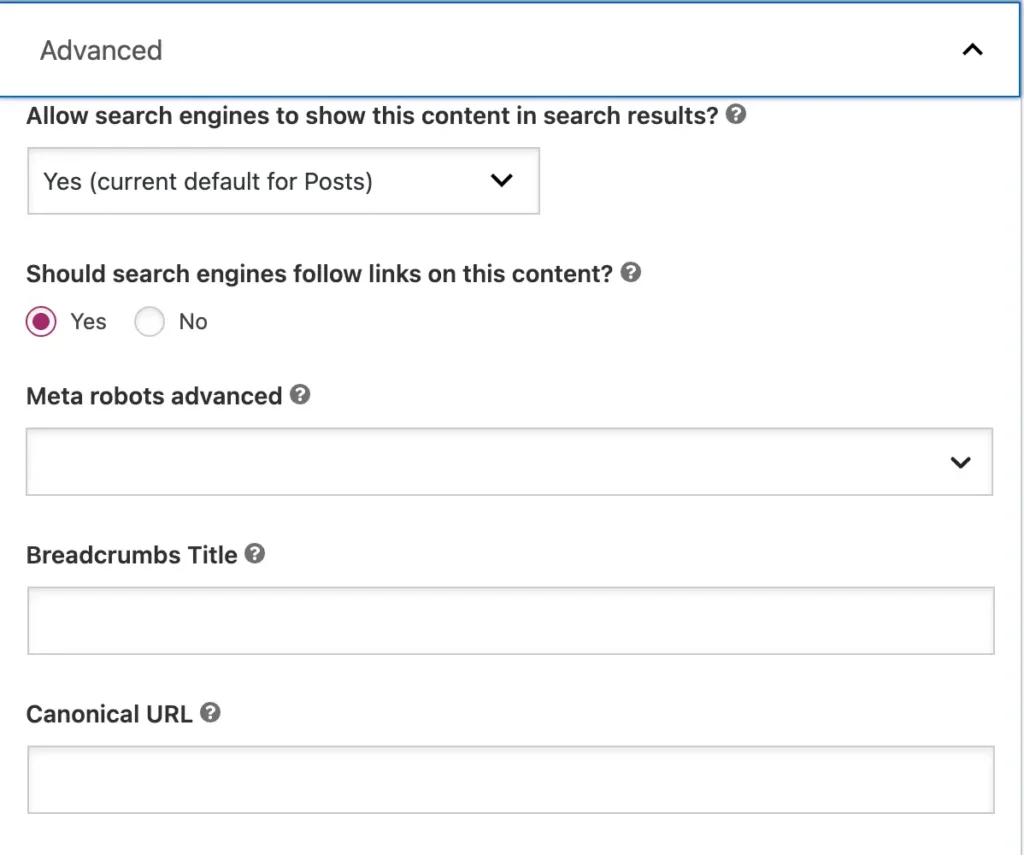
When you do need to point a page to a different canonical URL, such as a duplicate product variation, you simply paste the preferred URL into that field and the plugin handles inserting the correct tag into your site’s head section for you. This is by far the easiest and least error prone way to manage canonical tags, especially if you are not comfortable editing theme files directly.
What’s the Difference Between Canonical Tags and Hreflang
These two tags get confused constantly since they both live in the head of your HTML, but they solve completely different problems. A canonical tag consolidates duplicate or near identical content into one preferred URL, while hreflang points different language or regional versions of a page to the right audience without treating them as duplicates at all.
Mixing the two up causes real damage. Using a canonical tag across language versions by mistake tells search engines to ignore your Spanish page entirely and only show the English one, quietly erasing it from Spanish search results even though nothing was wrong with it. When you have regional variants of the same language, like US and Australian English, both tags usually work together, hreflang routes the audience while each version still keeps its own self-referencing canonical tag.
Also Read: The Complete Guide of International SEO to Ranking in Global Markets
Canonical Tags for Common SEO Scenarios
The theory behind canonical tags is straightforward enough, but real websites throw up messier situations than the textbook example of two identical pages. Here is how canonical tags actually play out across the scenarios you are most likely to encounter.
1. Pagination
This is one of the most misunderstood cases out there. If your blog or category page splits its content across page 1, page 2, page 3 and so on, the instinct many site owners have is to canonicalise every page back to page 1, treating the whole series as duplicates of the first page.
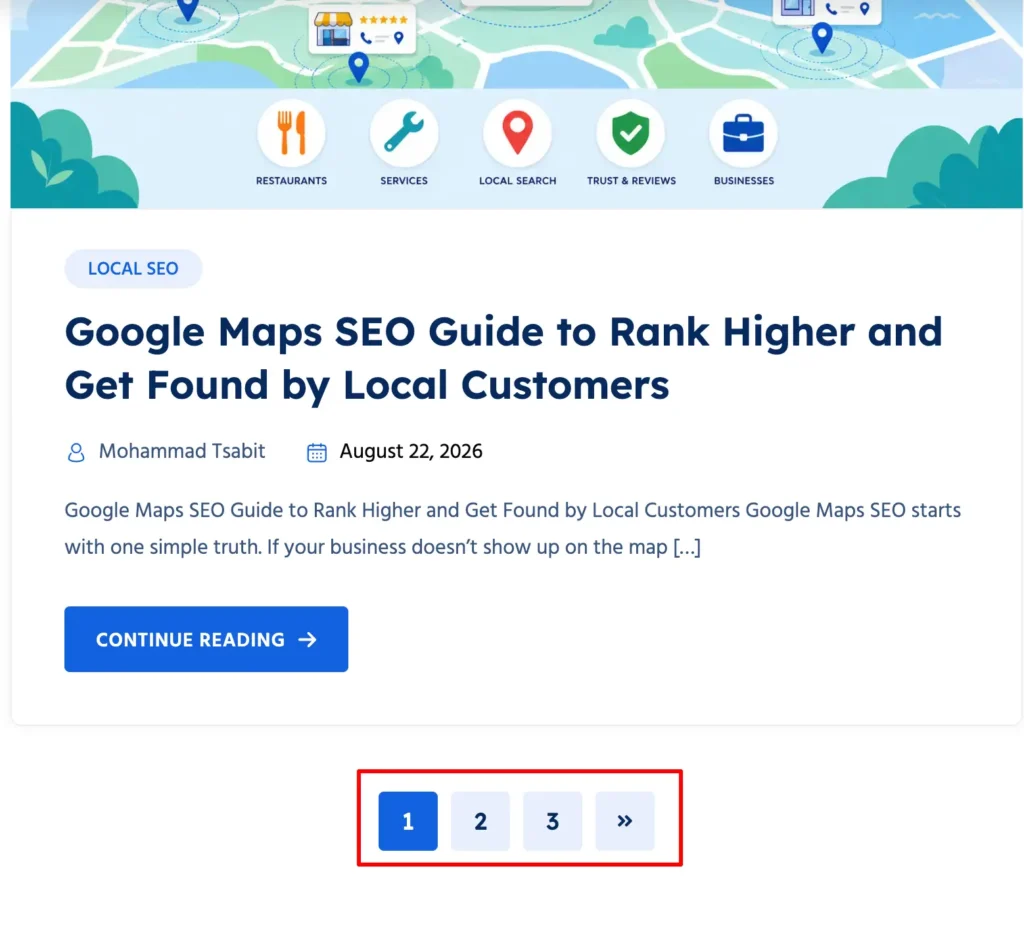
This is usually a mistake. Each paginated page typically shows different content, different products, or different articles, so it is not actually duplicate in the way canonical tags are meant to fix. The safer approach is to let each paginated page canonicalise to itself, so page 2 points to page 2 and page 3 points to page 3, keeping all of them eligible to appear in search results rather than quietly folding page 2 and 3 out of the index entirely.
2. HTTP vs HTTPS and www vs Non-www Duplicates
Even after most sites moved to HTTPS, it is still common for the old HTTP version, or the www and non-www variants, to remain technically accessible. If a visitor can load your page four different ways and get the same content each time, search engines see four separate URLs, not one.
The cleanest fix is a proper 301 redirect at the server level so only one version is ever reachable, but a canonical tag on each variant pointing to your preferred version acts as a solid backup signal in case a redirect gets missed somewhere or an old link keeps circulating.
3. URL Parameters and Tracking Tags
Marketing campaigns, internal filters, and analytics tools love adding parameters to the end of URLs, things like ?utm_source=newsletter or ?sort=price-low-to-high. Each unique parameter combination technically creates a new URL in the eyes of a crawler, even though a human visitor sees the exact same page.
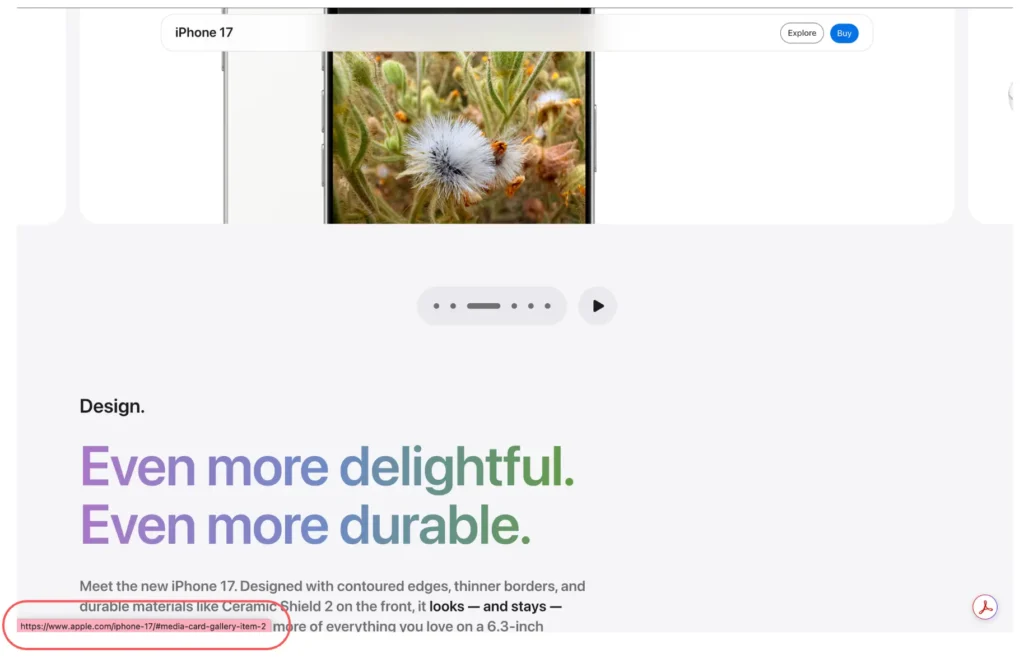
A canonical tag pointing every parameter variation back to the clean base URL keeps all of that ranking strength consolidated in one place, rather than diluted across dozens of tracked versions of the same content.
4. Duplicate Product Pages
Ecommerce sites run into this constantly. A single product might be reachable through a colour filter, a size filter, or a “related items” path, each generating its own URL for what is functionally the same product page.
Rather than treating every filtered variation as a page worth ranking on its own, canonicalising them back to the main product page keeps your ranking signals focused on the version customers are most likely to actually buy from. This is especially important on stores with large catalogues, where filter combinations alone can generate thousands of near duplicate URLs without anyone noticing.
5. Syndicated or Republished Content
If you allow another site to republish your article, or you contribute content to a larger publication, the syndicated version should carry a canonical tag pointing back to your original. This protects your ownership of the content in the eyes of search engines and prevents the awkward situation where the larger, more authoritative site outranks you for content you wrote first.
Reputable publications will usually add this canonical tag without being asked, but it is worth confirming rather than assuming, since it is easy for this step to get missed in the republishing process.
Also Read: Multilingual SEO That Actually Gets Your Content Found in Every Language
How to Check Canonical Tags on Your Website
Setting canonical tags is only useful if they are actually working the way you intended, and the only way to know that for sure is to check. This is a habit worth building into your regular site maintenance, not just something you do once and forget about.
1. View Page Source
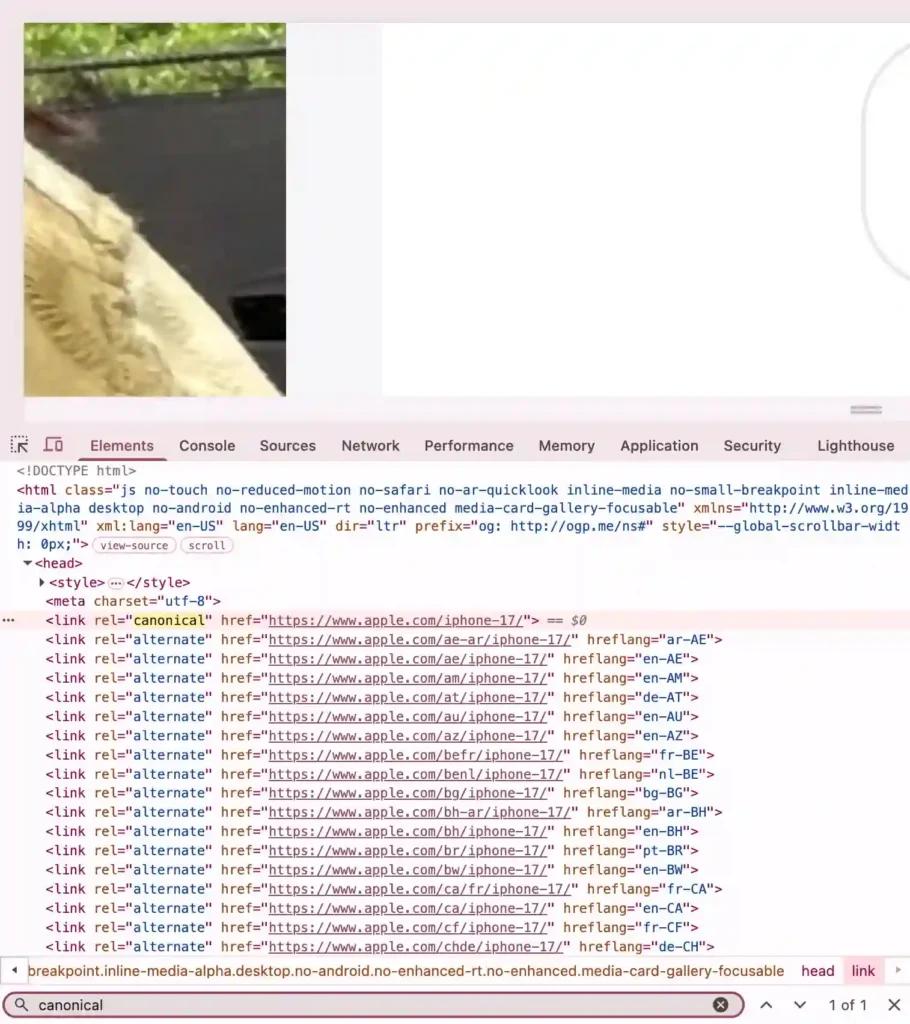
The simplest method needs nothing more than your browser. Right click anywhere on a page, select “View Page Source”, and search for the word “canonical” using Ctrl+F or Cmd+F. You will land directly on the <link rel="canonical"> line, and from there you can confirm whether the href value is pointing where you expect it to. This works well for a quick spot check but obviously does not scale if you need to review hundreds of pages.
2. Google Search Console
For a more reliable and search engine specific view, Google Search Console shows you exactly what Google itself has chosen as the canonical URL for any given page, which is not always the same as what your tag declares.
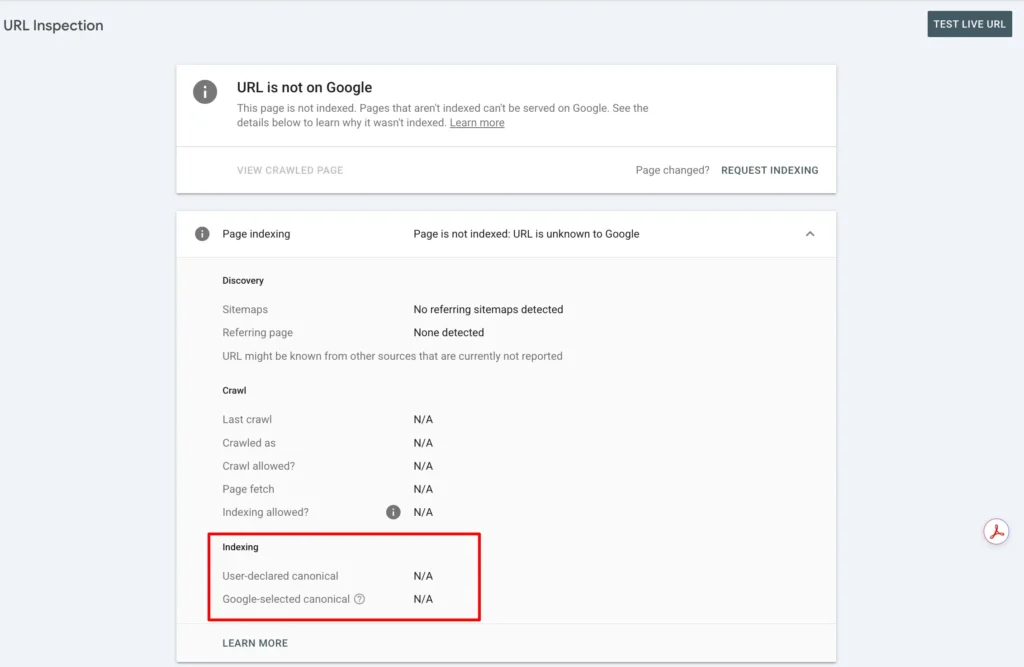
Under the URL Inspection tool, you can search any URL on your verified property and see two separate fields, “User declared canonical” and “Google selected canonical.” When these two do not match, it is a strong signal that Google disagrees with your choice for some reason, often because of the overriding signals mentioned earlier, like internal linking or redirects pointing elsewhere.
3. Site Crawling Tools
If you are checking canonical tags at scale, tools like Screaming Frog, Sitebulb, or Ahrefs Site Audit can crawl your entire website and generate a report showing every page’s canonical tag alongside the actual URL, flagging any mismatches or missing tags automatically.
This is the method most SEO professionals rely on for larger sites, since manually checking page source one URL at a time simply is not realistic once you are dealing with hundreds or thousands of pages.
4. Browser Extensions
For something in between a manual check and a full crawl, browser extensions like Detailed SEO Extension or SEO Meta in 1 Click display a page’s canonical tag the moment you load it, without needing to dig through source code.
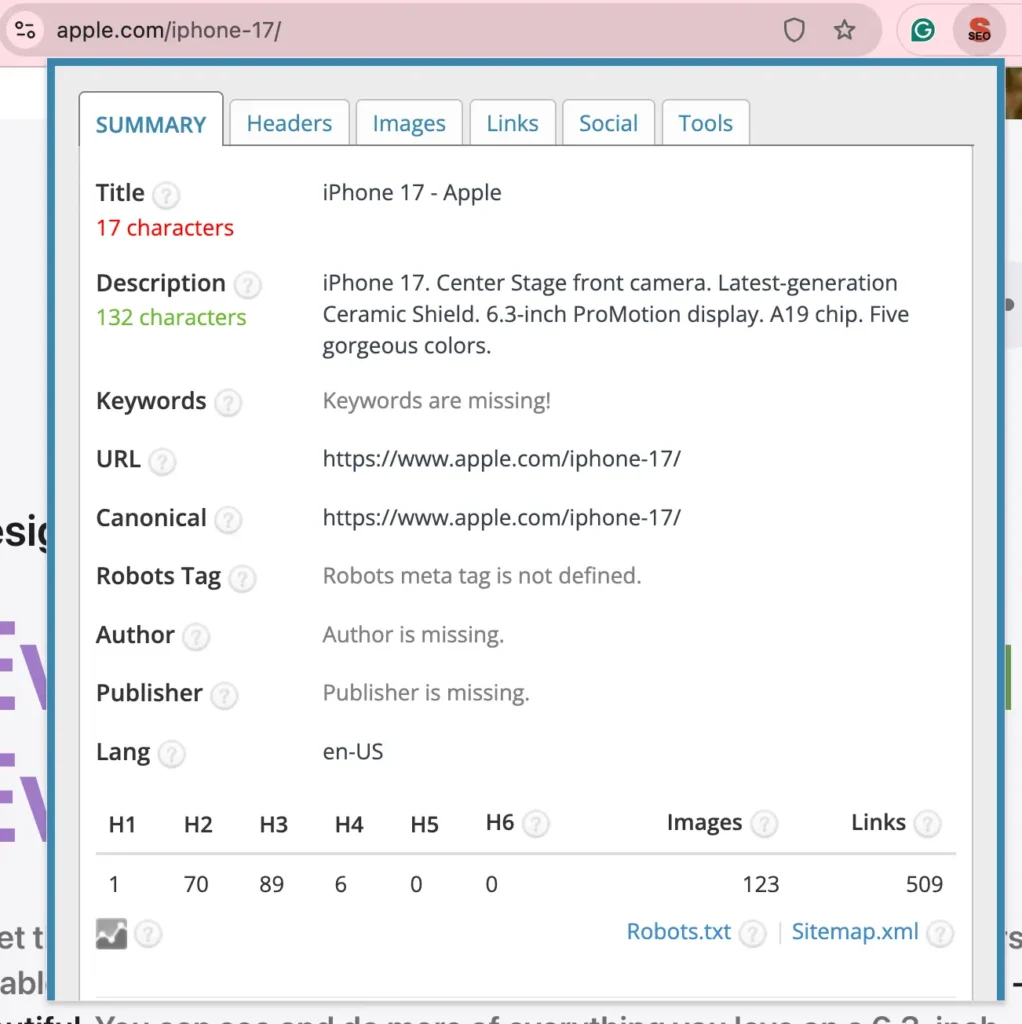
This is a convenient middle ground when you want quick confirmation while browsing your own site or a competitor’s, without opening a separate tool.
Canonical Tags and JavaScript SEO
Modern websites built with frameworks like React, Vue, or Next.js introduce a wrinkle that traditional HTML sites do not have to worry about, the canonical tag itself might not exist yet when a crawler first requests the page.
Since JavaScript often builds the final page content in the browser after the initial load, a poorly configured setup can leave your <head> section empty of a canonical tag until the script finishes running, and if a crawler does not wait around for that to happen, it simply never sees your canonical declaration at all.
Server-Side Rendering vs Client-Side Rendering
The safest approach is to have your canonical tag present in the initial HTML response, before any JavaScript executes, which is exactly what server-side rendering or static site generation gives you. Frameworks like Next.js with server-side rendering, or Nuxt for Vue based sites, can inject the canonical tag directly into the HTML that gets sent to the browser and to crawlers alike, removing any dependency on JavaScript actually finishing execution correctly.
If your site relies purely on client-side rendering instead, where the browser builds the page entirely through JavaScript after loading a mostly empty HTML shell, you are relying on the crawler successfully rendering your JavaScript before it can see your canonical tag, and that rendering step is not guaranteed to happen quickly or consistently across every crawl.
Avoid Letting JavaScript Override Your Canonical Tag
Even when a canonical tag is correctly present in your initial HTML, a common mistake is having a JavaScript script that runs afterward and unintentionally rewrites or removes it, sometimes through a well meaning but poorly tested analytics or personalisation script.
Google’s own guidance on this is direct, the canonical URL should be set in the HTML source code, and JavaScript should not be allowed to change the canonical link element afterward, since inconsistent signals between what loads first and what JavaScript changes later make it much harder for a crawler to trust which version you actually mean.
If you cannot set the canonical tag in your HTML source for some technical reason, the safer path is leaving it out of the HTML entirely and only setting it through JavaScript, rather than having two different systems fighting over the same tag.
Testing How Your Canonical Tag Renders
Do not assume your canonical tag is working just because it appears correctly when you view your source code, since view source often shows the raw HTML before JavaScript runs, not the final rendered version a crawler actually processes.
Using Google Search Console’s URL Inspection tool to view the rendered HTML, or testing with a headless browser tool like Puppeteer, gives you a much more accurate picture of what search engines are actually seeing after your JavaScript executes.
Also Read: The Complete Guide of JavaScript SEO and How to Get Google to See Your Content
How to Fix Canonical Tag Issues
Finding a canonical tag problem is only step one, actually fixing it depends entirely on what kind of issue you are dealing with. Here are the most common problems and how to resolve each one.
1. Missing Canonical Tags
Sometimes a page simply has no canonical tag at all, not even a self-referencing one. If you are on WordPress with Yoast or RankMath, this usually means the plugin’s automatic self-referencing behaviour got overridden somewhere, or the page was built outside the normal editor flow, such as through a custom template or a page builder that bypasses the plugin’s head output.
The fix is usually as simple as opening the page in your SEO plugin’s advanced settings and manually adding the canonical URL if it is not already populated.
2. Conflicting Canonical Signals
This happens when different signals on the same page point in different directions, for example your canonical tag says one thing, but your sitemap, your internal links, or a redirect all point somewhere else.
Google tends to trust the majority signal over your canonical tag when there is a clear conflict, which is exactly why the Google-selected canonical field in Search Console sometimes does not match what you declared. The fix here is consistency, make sure your internal links, sitemap entries, and canonical tags are all pointing to the same URL rather than working against each other.
3. Canonical Pointing to a Non-Indexable Page
A canonical tag pointing to a page that is blocked by robots.txt, marked noindex, or redirects elsewhere entirely creates a dead end for search engines, and Google will typically just ignore the canonical tag in this case since it cannot consolidate signals into a page it is not allowed to index.
In fact, Google’s own guidance on consolidating duplicate URLs specifically steers site owners away from using noindex as a way to control canonical selection, favouring a proper rel=”canonical” annotation instead. Always double check that the URL your canonical tag points to is itself indexable, meaning it is not blocked, not noindexed, and loads with a 200 status code rather than a redirect.
4. Canonical Chains
This occurs when page A canonicalises to page B, but page B itself canonicalises to page C, creating a chain rather than a direct path. Search engines can usually follow a short chain, but longer ones increase the risk of signals getting lost or misinterpreted along the way. The fix is to audit these chains and point every page directly to the final destination URL instead of routing through intermediate steps.
5. Canonical Mismatches After a Site Migration
Site migrations, domain changes, or CMS switches are a common source of canonical chaos, since old canonical tags sometimes get carried over pointing to URLs that no longer exist on the new setup. After any migration, a full site crawl checking canonical tags against your new URL structure should be standard practice, not an afterthought, and running affected URLs through the URL Inspection tool is a reliable way to confirm Google has picked up the correct canonical rather than assuming it has.

Get Your Canonical Tags Right with Tsabit Insight
Canonical tags are not a set and forget task, they need a second look every time you launch new filtered pages, migrate your site, or add a fresh language version, since each of those moments can quietly introduce a duplicate you did not plan for. If you have made it this far through the guide, you already know how many small details go into getting this right consistently. The good news is, you do not have to manage all of it on your own.
At Tsabit Insight, I provide freelance SEO Expert services built around exactly this kind of technical groundwork, auditing your existing canonical setup, catching conflicting signals before they cost you rankings, and making sure every page on your site is sending search engines a clear, consistent message about what deserves to rank. Every project starts with understanding how your site is actually structured and where duplicate content tends to creep in, the same way this guide does, before any crawl report or spreadsheet gets involved.
Whether you are dealing with a store full of filtered product variations or a site migration that left canonical tags pointing to pages that no longer exist, the approach stays grounded in fixing what is actually broken, not just flagging issues for the sake of a longer report. If you are looking for a reliable freelance SEO specialist to clean up your canonical tags and the technical SEO around them, get in touch to discuss your project and see how Tsabit Insight can help your site get indexed and ranked the way it should be.
FAQ